


What is the Pipeline?
The Visual Paradigm OpenDocs Pipeline is a secure, centralized repository that serves as the “connective tissue” between different tools in the Visual Paradigm ecosystem. It is primarily used to bridge the gap between initial visual modeling and final documentation, allowing teams to move from “concept to docs” without manual export/import friction.
Think of it as the essential hub that stores, manages, and transfers artifacts—assets like UML diagrams, flowcharts, or system architectures—between Visual Paradigm Desktop (where you create and refine diagrams) and OpenDocs (where you build comprehensive documentation).
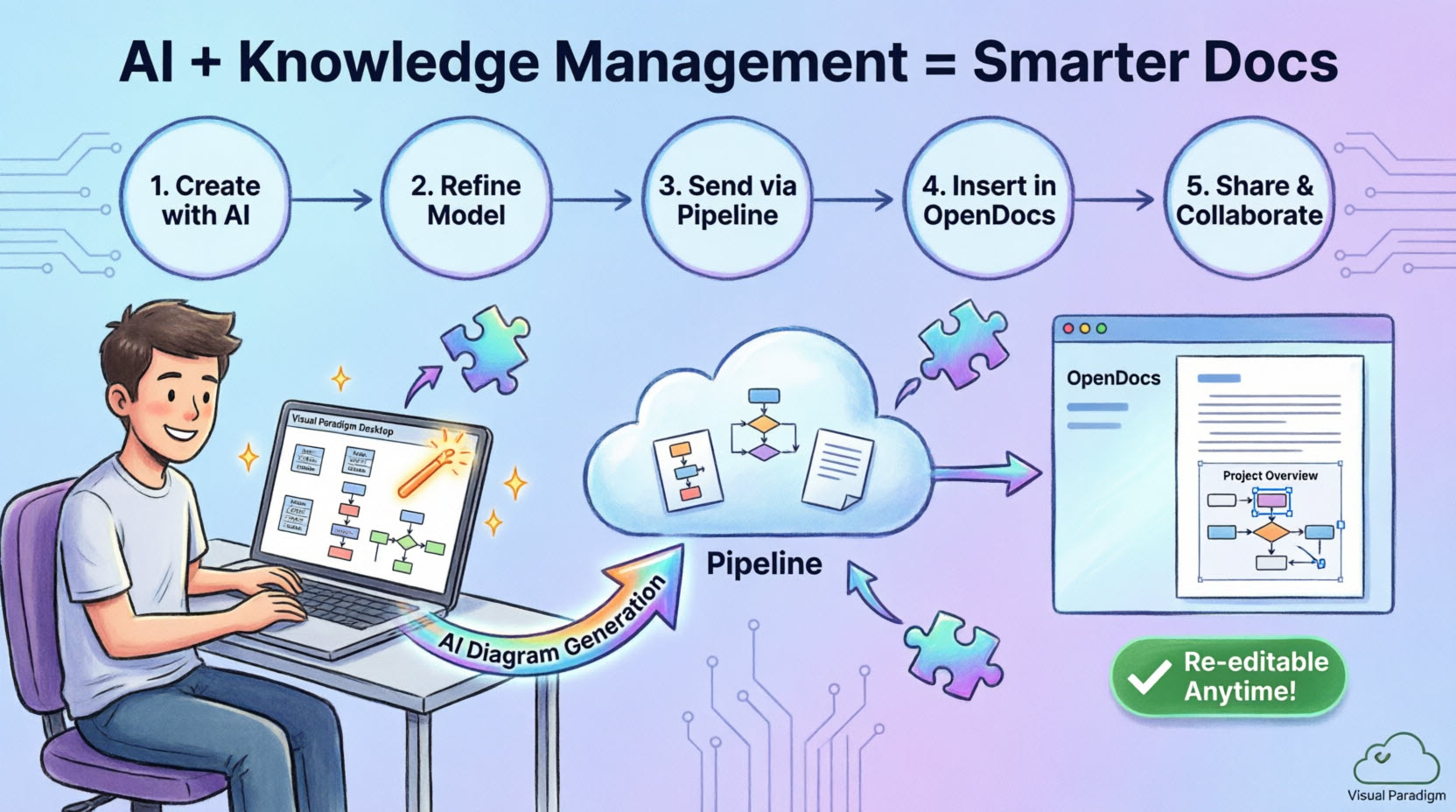
The Pipeline allows outputs from one tool—like an AI-generated UML diagram—to become inputs for another, such as a technical manual or system specification document, creating a seamless, bidirectional workflow.
Key Capabilities & Benefits
✅ Seamless Transfer
Send diagrams directly from Visual Paradigm Desktop or the AI Chatbot to your OpenDocs workspace with a single action—no manual file handling required.
✅ Maintains Full Editability
Unlike static image exports, diagrams sent through the Pipeline remain connected to their source model. Re-edit a diagram in the Desktop environment and push updates to OpenDocs with a few clicks, preserving all formatting and metadata.
✅ Automatic Version Control
The Pipeline automatically tracks revisions. When a model evolves, you can swap to the latest version within your documentation to ensure information remains current—complete with revision history and rollback capability.
✅ AI Integration
Generate professional diagrams using natural language in the AI Chatbot, then “Pipeline” them directly into a technical manual or knowledge base in OpenDocs for further description and contextualization.
✅ Eliminates Manual Friction
Replace the traditional, error-prone process of exporting images, uploading files, and manually replacing outdated visuals in documents with an automated, reliable workflow.
When Should You Use the Pipeline?
The Pipeline is designed for scenarios where you need to:
| Scenario | Pipeline Solution |
|---|---|
| Transfer diagrams from Desktop to documentation | After creating or refining diagrams in Visual Paradigm Desktop Professional Edition, use the Pipeline to move them into your OpenDocs knowledge base |
| Maintain version control | When your models evolve and you need to keep documentation synchronized with the latest diagram revisions |
| Collaborate across teams | When multiple stakeholders need access to both the visual models and their contextual documentation |
| Leverage AI-generated diagrams | After using Visual Paradigm Desktop’s AI diagram generation feature to quickly visualize concepts, send them directly to OpenDocs for elaboration |
| Create living documentation | When your documentation needs to evolve alongside your models throughout the project lifecycle |
Access Requirements
| Requirement | Details |
|---|---|
| License Tier | Visual Paradigm Professional Edition or above, OR Visual Paradigm Online (Combo Edition) license |
| Platform Access | OpenDocs is a web-based platform accessible via any modern browser; artifacts are created/refined in Desktop or AI tools |
| Internet Connection | Required for Pipeline synchronization and cloud repository access |
| User Permissions | Appropriate project access rights in both Desktop and OpenDocs environments |
Step-by-Step: Using the Pipeline
📤 Exporting Diagrams from Visual Paradigm Desktop to OpenDocs
Step 1: Prepare Your Diagram
Open the diagram you wish to send in Visual Paradigm Desktop. This could be a diagram you created manually or one generated using the AI diagram generation tool.
Step 2: Send to Pipeline
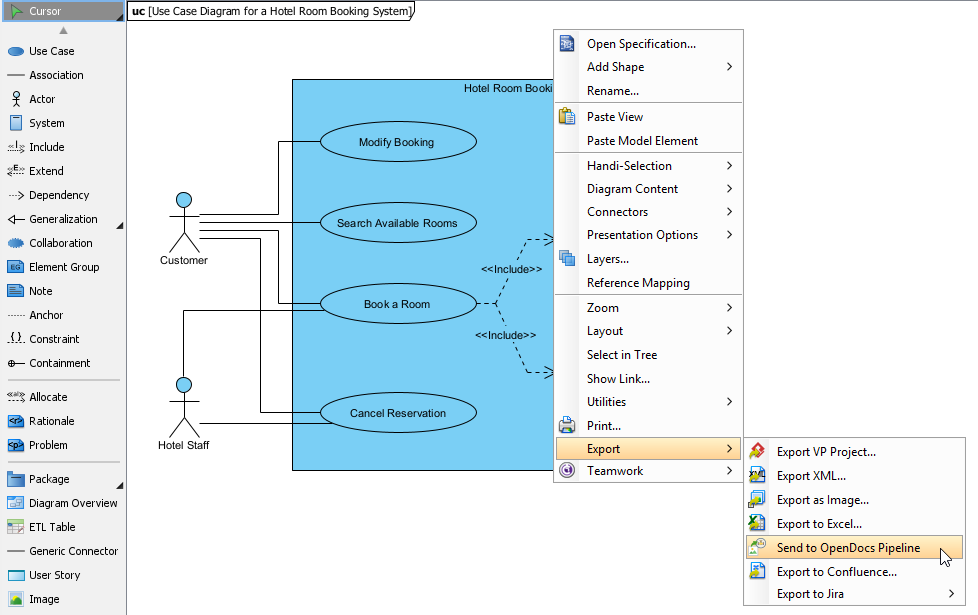
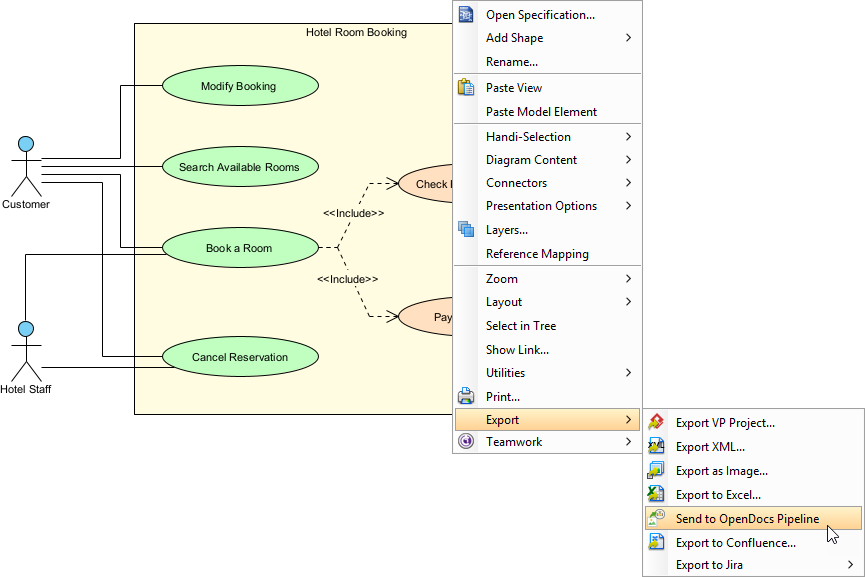
Right-click on the diagram and select Export > Send to OpenDocs Pipeline.
Step 3: Save Your Project
When prompted, save your project by clicking OK. This ensures your diagram is properly versioned in the Pipeline.
Step 4: Add Context (Optional)
Enter a comment to help identify the version or purpose of the artifact. This comment will be visible in the Pipeline pane within OpenDocs, making it easier for team members to understand the diagram’s context.
Step 5: Confirm Export
Confirm the export to send your diagram to the cloud-based Pipeline repository.
📥 Inserting Pipeline Artifacts into OpenDocs
Once your diagram is in the Pipeline, integrating it into your documentation is straightforward:
Step 1: Enter Edit Mode
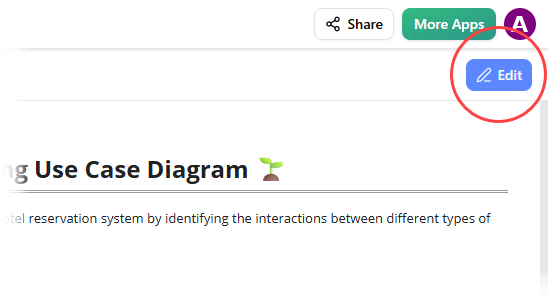
Open any document page in OpenDocs and click Edit.
Step 2: Position Your Cursor
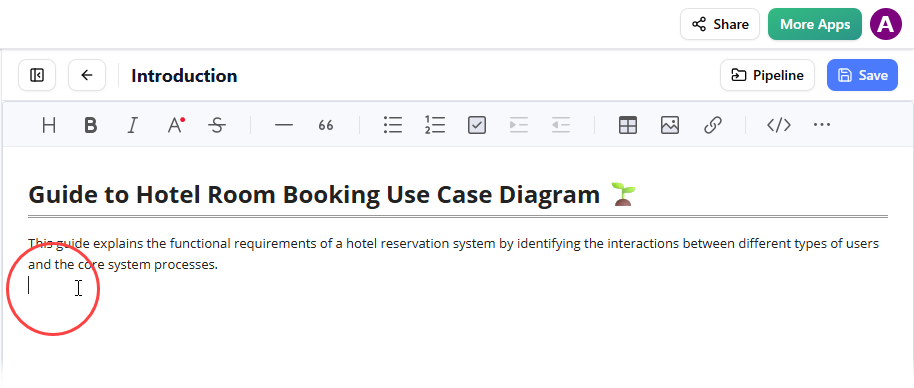
Click on the page where you want to insert the diagram.
Step 3: Access the Insert Menu
On the toolbar, click Insert.
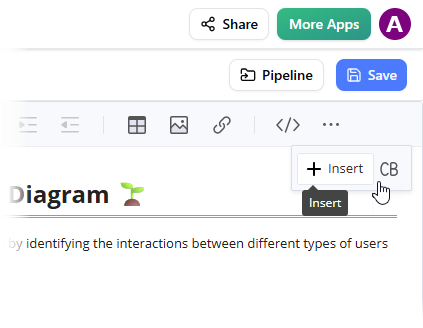
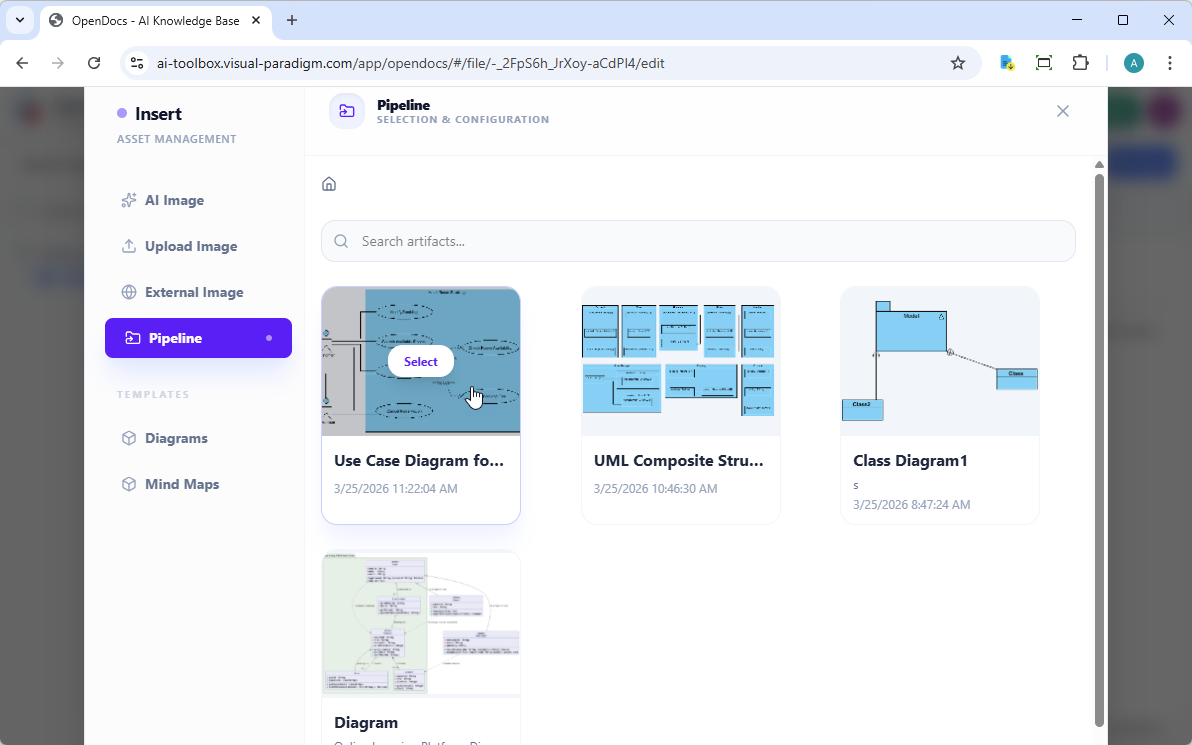
Step 4: Select from Pipeline
In the Insert window, select Pipeline from the left-hand sidebar. Your sent diagrams will appear here, ready for insertion.
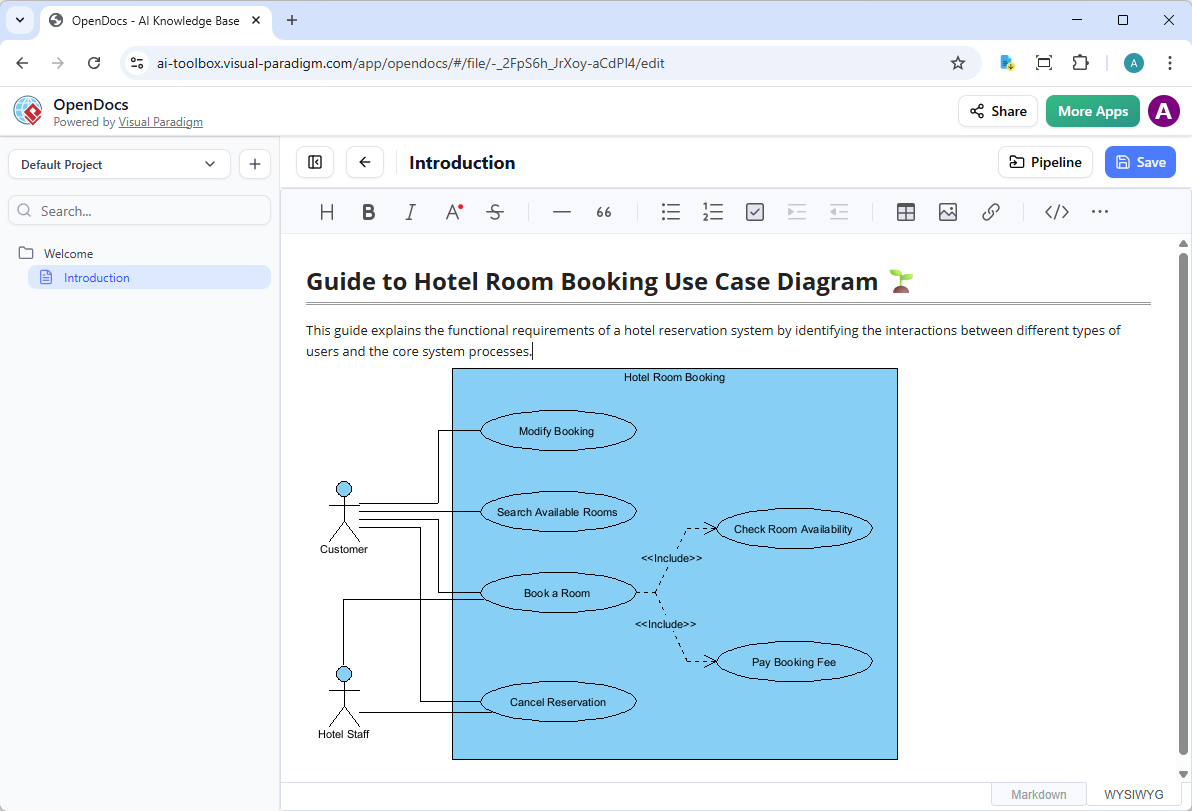
Step 5: Insert the Diagram
Click on the diagram to insert the image directly at your cursor position.
🔄 Keeping Documentation in Sync: Updating Artifacts
One of the Pipeline’s most powerful features is its ability to keep your documentation synchronized with evolving models.
Step 1: Open the Source Diagram
In OpenDocs, click the Edit icon at the top right of the diagram image to open the Edit Diagram window.
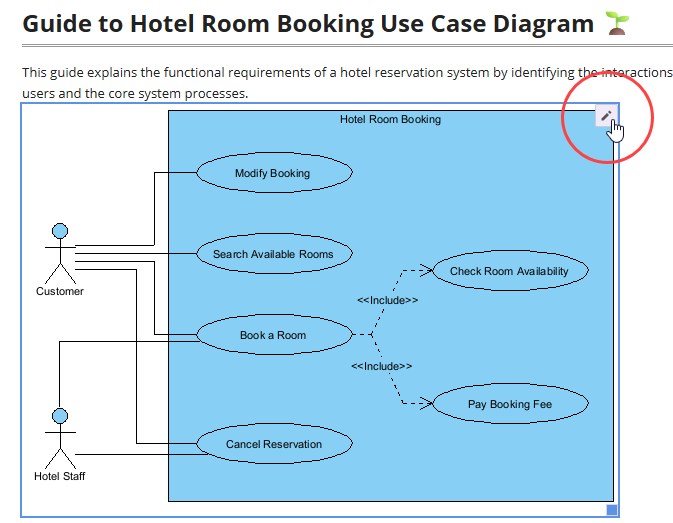
Copy the diagram link provided. In Visual Paradigm Desktop, go to Project > Open, paste the link, and the software will open the source model for you.
Step 2: Edit and Re-send
Modify your diagram in Visual Paradigm Desktop. Once finished, right-click the diagram and select Export > Send to OpenDocs Pipeline again. This creates a new revision of the artifact automatically.
Step 3: Swap to the Latest Revision
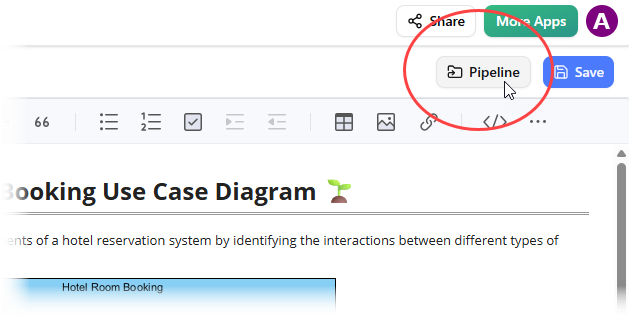
Back in the OpenDocs editor, click Pipeline at the top right.
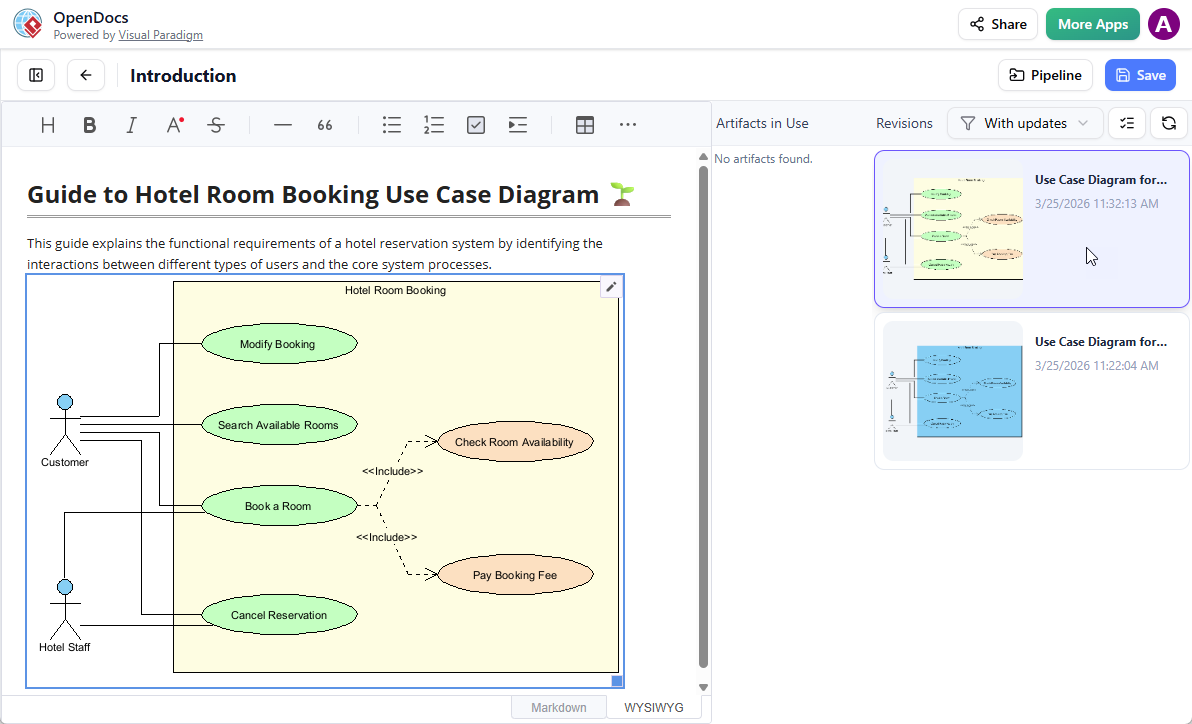
You will see the artifacts currently used on that page. Select the diagram to see a list of revisions. Simply click on the latest revision to instantly swap the old diagram for the updated version.
Why Pipeline Transforms Knowledge Management
🎯 Creates a True Single Source of Truth
The Pipeline eliminates scattered diagram versions across different platforms. By centralizing all artifacts in one repository accessible to both Desktop and OpenDocs, teams always work with the most current version—critical for knowledge management where outdated information leads to costly mistakes.
👥 Enables Collaborative Knowledge Building
Different team members excel at different tasks—some are skilled modelers, others are technical writers. The Pipeline allows each person to work in their preferred environment while contributing to a unified knowledge base. Modelers focus on Visual Paradigm Desktop; documentation specialists work in OpenDocs; the Pipeline seamlessly connects their work.
🏃 Supports Agile Documentation Practices
In agile environments, requirements and designs evolve rapidly. The Pipeline’s revision tracking and easy update mechanism mean documentation keeps pace with development. Teams no longer choose between “documentation that’s current” and “documentation that exists”—they can have both.
🧠 Reduces Cognitive Load
By automating diagram transfers between tools, the Pipeline frees team members from mundane file management tasks. This allows focus on what matters: creating accurate models and writing clear documentation. Optional commenting provides context without separate communication channels.
🔄 Facilitates Knowledge Transfer
When onboarding new team members or transitioning projects, the Pipeline provides a complete, versioned history of how models evolved alongside their documentation. This historical context is invaluable for understanding design decisions and system evolution.
🤖 Integrates AI-Assisted Workflows
The Pipeline fully supports Visual Paradigm’s AI diagram generation capabilities. Teams can rapidly prototype ideas using AI, refine them manually, and immediately incorporate them into living documentation—all without leaving the Visual Paradigm ecosystem. This accelerates the entire knowledge creation process.
🏆 Ensures Professional Quality
Available in Visual Paradigm Professional Edition and above, the Pipeline integration ensures that only professional-grade tools are used for enterprise knowledge management. This maintains quality standards while providing the flexibility modern teams need.
Best Practices & Pro Tips
💡 Naming & Organization
-
Use descriptive, consistent naming conventions for Pipeline artifacts
-
Add meaningful comments during export to provide context for collaborators
-
Organize diagrams by project phase, module, or stakeholder group for easy retrieval
🔄 Version Management Strategy
-
Establish team guidelines for when to create new revisions vs. updating existing artifacts
-
Use the revision history to document major design decisions or requirement changes
-
Archive outdated versions rather than deleting them to preserve audit trails
🤝 Collaboration Workflows
-
Assign clear ownership for diagram maintenance vs. documentation authoring
-
Use Pipeline comments to flag items needing review or clarification
-
Schedule regular sync sessions to review Pipeline artifacts and documentation alignment
🚀 AI Integration Tips
-
Start with AI-generated diagrams for rapid prototyping, then refine manually before sending to Pipeline
-
Use natural language prompts that include context about the intended documentation audience
-
Leverage AI for initial structure, then add domain-specific details in Desktop before finalizing in OpenDocs
🔒 Security & Compliance
-
Review access permissions regularly to ensure only authorized users can modify Pipeline artifacts
-
Use the commenting feature to document compliance requirements or regulatory constraints
-
Export audit logs of Pipeline activity for governance and quality assurance processes
Reference Resources
-
Sync AI Diagram to OpenDocs Pipeline Guide: A step-by-step guide on synchronizing AI-generated diagrams with OpenDocs in real time, ensuring consistency and up-to-date documentation across projects and teams.
-
Mastering the Pipeline in Visual Paradigm OpenDocs: A Complete Guide to Streamlined Knowledge Management: Comprehensive walkthrough of Pipeline features, workflows, and best practices for enterprise knowledge management.
-
Azure DevOps Using Agile Management Tool: Insights on artifact management and data exchange in agile development environments.
-
AI Diagram to OpenDocs Pipeline: Release announcement detailing the integration of AI-generated diagrams with the OpenDocs Pipeline for seamless knowledge transfer.
-
Visual Paradigm OpenDocs: The Complete Guide to AI-Powered Knowledge Management and Diagram Generation: Detailed overview of OpenDocs’ capabilities, explaining how AI automates creation of complex diagrams while maintaining accuracy and professional standards.
-
AI Textual Analysis Tool – Full Editability: Documentation on retaining complete control and editability of AI-generated diagrams through Visual Paradigm’s intuitive editor.
-
OpenDocs – AI-Powered Visual Knowledge Engine: Official feature page for OpenDocs, an AI-powered visual knowledge platform that enables users to create, manage, and share diagrams and documentation using natural language.
-
Comprehensive Guide to OpenDocs (February–March 2026 Update): The AI-Powered Visual Knowledge Engine: In-depth guide exploring latest advancements in OpenDocs, including AI-driven diagram generation, real-time collaboration features, and enhanced knowledge management workflows.
-
OpenDocs: The AI-Powered Knowledge Platform – Release Notes: Release announcement detailing the launch of OpenDocs as a full-featured AI knowledge platform, emphasizing its ability to convert text descriptions into structured diagrams and documentation.
-
AI Flowchart Generator – OpenDocs Update: Discover how OpenDocs now supports AI-generated flowcharts from plain text, enhancing productivity by automatically translating business logic into visually intuitive flowcharts.
-
AI Entity Relationship Diagram (ERD) Generator – OpenDocs: OpenDocs now includes an AI-powered ERD generator that creates accurate database schema diagrams from natural language input, ideal for developers and data architects.
-
WYSIWYG Editor Update – AI Knowledge Management Tool: Introduction of a refined WYSIWYG editor within OpenDocs, allowing real-time content and diagram editing with enhanced formatting, collaboration, and AI-assisted content structuring.
-
Integrated Diagram Editor – Create a Wide Variety of Diagrams: OpenDocs features an integrated diagram editor supporting UML, BPMN, network charts, and more, enabling professional diagram creation without external tools.
-
Chat with OpenDocs AI: Access the AI assistant within OpenDocs to generate diagrams, clarify documentation, and receive real-time suggestions for improving knowledge artifacts using conversational AI.
-
AI Deployment Diagram Generator – OpenDocs: OpenDocs now includes an AI-powered deployment diagram generator that automatically creates infrastructure diagrams based on textual descriptions of system architecture.
-
AI Component Diagram Generator – OpenDocs Update: Enhanced OpenDocs with an AI-driven component diagram generator, enabling developers to quickly visualize software architecture and module relationships from simple text inputs.
-
AI EPC Diagram Generator – OpenDocs (Event-Driven Process Chain): OpenDocs now supports AI-generated EPC diagrams, helping business analysts model complex processes with event-triggered logic and organizational roles.
-
New in OpenDocs: AI-Powered Data Flow Diagram (DFD) Support: OpenDocs now supports AI-generated Data Flow Diagrams, allowing users to create detailed system data flow visualizations from plain language descriptions.
-
AI PERT Chart Generator – OpenDocs (Visual Paradigm): Introduction of an AI-powered PERT chart generator, helping project managers visualize task dependencies, timelines, and critical paths with minimal manual input.
-
AI Breakdown Structure Chart Maker – OpenDocs: OpenDocs now includes an AI-driven tool for generating Work Breakdown Structure (WBS) charts, enabling project teams to organize tasks hierarchically and efficiently plan complex projects.
-
Is OpenDocs Available as a Desktop App?: OpenDocs is accessible via a modern web browser without installation—making it instantly available on any device with internet access, ideal for remote and collaborative teams.
-
Visual Paradigm – Shop & Licensing: Explore licensing options, bundles, and pricing plans for Visual Paradigm and OpenDocs, including enterprise, academic, and individual subscriptions.
-
AI-Powered Diagram Generation – Visual Paradigm AI: Visit the dedicated AI portal for Visual Paradigm to explore advanced AI features, including diagram generation, natural language to diagram conversion, and intelligent documentation tools integrated across the ecosystem.
Ready to streamline your knowledge management workflow?
Start by exploring OpenDocs and ensuring your Visual Paradigm license includes Pipeline access. Then, try sending your first diagram from Desktop to OpenDocs—you’ll experience the frictionless “concept to docs” workflow in minutes.