


In the world of software engineering and system design, the gap between human thought and machine execution is often bridged by syntax. Traditional modeling tools like PlantUML require strict adherence to specific rules. A misplaced arrow, a typo in a color hex code, or an invalid keyword can halt the entire rendering process. This is where VPasCode, Visual Paradigm’s “Diagram-as-Code” tool, introduces a paradigm shift. By integrating an AI-driven diagnostic engine directly into the editor, VPasCode transforms the debugging process from a frustrating obstacle course into a seamless, one-click operation.
The Challenge of Syntax-Heavy Modeling
When you write code for diagrams—whether it’s PlantUML, Mermaid, or VPasCode’s proprietary syntax—you are essentially writing a script that a renderer must interpret. The renderer is unforgiving. It expects a rigid structure.
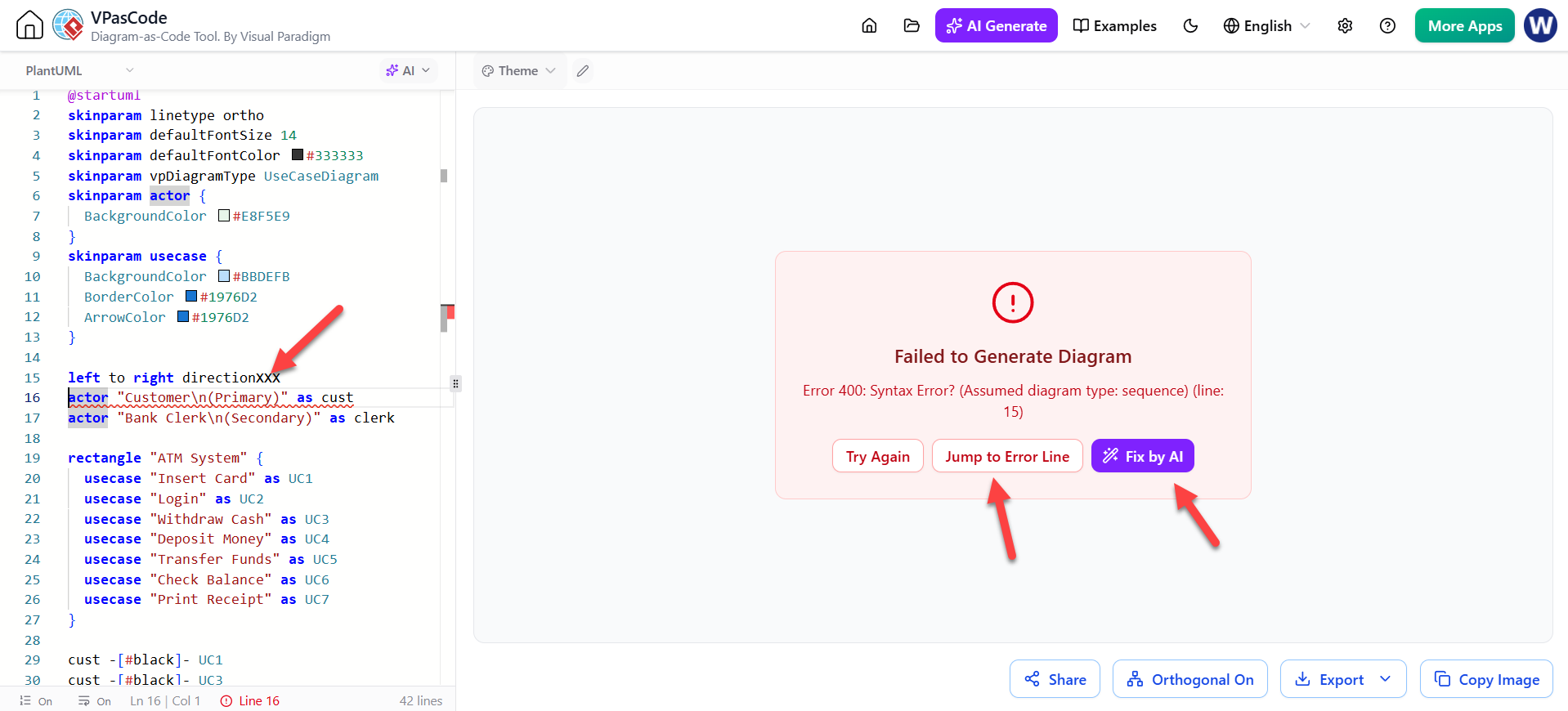
Consider the scenario presented in the screenshot above. The user is attempting to define a Use Case Diagram. The syntax on line 15 contains a deliberate or accidental error: left to right directionXXX. The word directionXXX is invalid. In a traditional environment, this results in a compilation error. The user must then:
- Read the error message (often cryptic).
- Locate the line number in the text editor.
- Consult documentation or search forums to understand why the syntax is wrong.
- Manually delete the text and retype it correctly.
This “friction” breaks the developer’s flow state and turns a creative modeling task into a mechanical debugging exercise.
Understanding the VPasCode Architecture
VPasCode is built on a dual-pane architecture designed to support both visual and code-based workflows. To understand how the AI debugging works, we must look at the system components involved.
1. The Code Editor (Left Pane)
This is the source of truth. It allows users to write script-like commands. The editor provides syntax highlighting and line numbering. In the example provided, we see standard PlantUML-style skin parameters defining the visual theme (colors, fonts) and the logical structure of the diagram (actors, use cases, rectangles).
2. The Rendering Engine (Right Pane)
This is the output window. It takes the text from the left pane, compiles it, and renders the visual diagram. When the compiler fails due to a syntax error, the engine does not just show a blank screen; it triggers a diagnostic overlay.
Deep Dive: The “Failed to Generate” Overlay
The most critical feature of this interface is the diagnostic overlay that appears when the compiler encounters a fatal error, such as the Error 400: Syntax Error? shown in the image. This overlay is not just a static error log; it is an interactive interface designed for resolution.
The Three Resolution Paths
When the error occurs on line 15, the system offers three distinct buttons:
- Try Again: This attempts to re-compile the code exactly as it is. This is useful if the error was a temporary rendering glitch, but it is rarely the solution for syntax errors.
- Jump to Error Line: This acts as a navigation aid. It moves the cursor focus to the specific line (Line 16 in the screenshot, though the error references line 15 context) where the parser got stuck, allowing the user to manually inspect the code.
- Fix by AI: This is the core differentiator. It invokes the AI diagnostic engine.
Step-by-Step: The “Fix by AI” Workflow
The “Fix by AI” button represents the transition from manual debugging to automated resolution. Here is the step-by-step technical logic that occurs when you click this button:
Step 1: Error Parsing
The AI engine intercepts the compilation error message. It identifies the error type (e.g., Syntax Error) and the location (e.g., Line 15). It parses the surrounding context to understand the intent of the code block.
Step 2: Contextual Analysis
In our example, the code reads left to right directionXXX. The AI recognizes that left to right is a common directive for layout, but directionXXX is a nonsense string. It hypothesizes that the user likely intended to type direction or perhaps meant to end the line.
Step 3: Inline Correction
Unlike external tools that might suggest a fix in a separate chat window, VPasCode applies the fix inline. The AI rewrites the code within the editor itself. It might change directionXXX to a valid directive or remove the invalid token entirely, restoring the valid syntax structure.
Step 4: Automatic Re-rendering
Once the syntax is corrected, the engine immediately re-compiles the code. The error overlay disappears, and the diagram is successfully generated on the right pane.
Code Example: From Error to Success
To illustrate the transformation that the AI performs, let’s look at the specific code snippet from the image. The error is on line 15.
@startuml
skinparam linetype ortho
skinparam defaultfontsize 14
skinparam defaultFontColor #333333
skinparam vpDiagramType UseCaseDiagram
skinparam actor {
  BackgroundColor #E8F5E9
}
skinparam usecase {
  BackgroundColor #BBDEFB
  BorderColor #1976D2
  ArrowColor #1976D2
}

! Error here: 'directionXXX' is invalid
left to right directionXXX

actor "Customer
(Primary)" as cust
actor "Bank Clerk
(Secondary)" as clerk
...
After the AI intervention, the code is corrected to valid syntax. The AI understands the intent of the layout directive and fixes the typo automatically.
@startuml
skinparam linetype ortho
skinparam defaultfontsize 14
skinparam defaultFontColor #333333
skinparam vpDiagramType UseCaseDiagram
skinparam actor {
  BackgroundColor #E8F5E9
}
skinparam usecase {
  BackgroundColor #BBDEFB
  BorderColor #1976D2
  ArrowColor #1976D2
}

! Fixed: 'directionXXX' removed/corrected
left to right

actor "Customer
(Primary)" as cust
actor "Bank Clerk
(Secondary)" as clerk
...
Why This Matters for System Modeling
The integration of AI debugging in VPasCode does more than just fix typos; it changes the user experience.
- Reduced Cognitive Load: You no longer need to remember the exact syntax rules for every single command. You can focus on the logic of your system.
- Increased Iteration Speed: Fixing an error takes a single click rather than a minute of reading and typing.
- Seamless Workflow: The transition from “Research Task” (figuring out why it failed) to “Operation” (fixing it) is instant.
By handling the strictness of the compiler, VPasCode allows the developer to be more creative and less concerned with the mechanics of the rendering engine.