


In modern software development, the gap between high-level stakeholder requirements and technical implementation is often bridged by Use Case Diagrams. However, traditional modeling tools often require a steep learning curve, leading to diagrams that are either too complex for business stakeholders or too simplistic to be useful for developers. Visual Paradigm addresses this “blank canvas problem” by introducing AI-assisted conversational modeling. This tutorial explores how to leverage AI to generate syntactically correct UML diagrams, refine them through natural language commands, and integrate them into an Agile workflow.
1. The Shift to Conversational Modeling
Historically, creating a Use Case diagram involved manually dragging and dropping shapes, drawing connecting lines, and ensuring strict adherence to UML syntax rules. This process could be tedious and prone to human error. The introduction of AI-driven conversational modeling changes this paradigm entirely. Instead of starting with a blank canvas and a toolbar, the process begins with a natural language prompt.
By describing the system’s scope and functionality in plain English, the AI Chatbot parses the request, identifies the actors, defines the system boundary, and generates a complete, valid Use Case diagram in seconds. This allows teams to focus on the what and who of the system rather than the mechanics of drawing.
2. Generating Your Baseline Diagram
The first step in this workflow is defining the system. To generate an effective baseline, your prompt must be specific about the system boundary and the roles of the actors involved.
Consider a scenario where you are designing a library management system. A robust prompt would look like this:
System Prompt:
“Create a use case diagram for a library management system. Members can search the catalog, borrow books, return books, reserve unavailable items, and pay late fees. Librarians manage inventory, register new members, and process fines. The system should include authentication for both members and librarians. Show include relationships for authentication and extend relationships for reservation notifications when items become available.”
Upon executing this prompt, the AI generates a diagram containing the necessary actors (Member, Librarian), the system boundary (Library Management System), and the specific use cases. It also intelligently suggests relationships, such as linking Search Catalog to Authenticate User via an <<include>> relationship, ensuring mandatory preconditions are met.
3. Refinement Through Conversation
Once the baseline diagram is generated, the real work begins. Unlike static diagramming tools, Visual Paradigm’s AI interface allows for iterative refinement through conversational commands. This eliminates the need to manually reconnect lines or resize shapes.
Common Refinement Commands
- Adding Relationships: You can command the AI to add complex logic without touching the canvas. For example: “Add an extend relationship from ‘Premium Support’ to ‘Login’ when the user has a premium account.”
- Layout Adjustments: If the diagram becomes cluttered, you can request layout changes: “Move the Admin actor to the right and group the reporting use cases together.”
- Clarification: If a relationship is unclear, you can ask the AI to explain its logic: “Explain the include relationship you created between ‘Checkout’ and ‘Validate Payment’.”
The AI understands UML 2.5 syntax and preserves the layout intent while applying semantic changes, ensuring the diagram remains professional and readable.
4. Advanced Modeling Concepts: Include vs. Extend
One of the most critical aspects of Use Case modeling is correctly distinguishing between mandatory and optional behaviors. Visual Paradigm’s AI helps enforce these distinctions, but understanding the underlying concepts is vital for validation.
Use «Include» for Mandatory Behavior
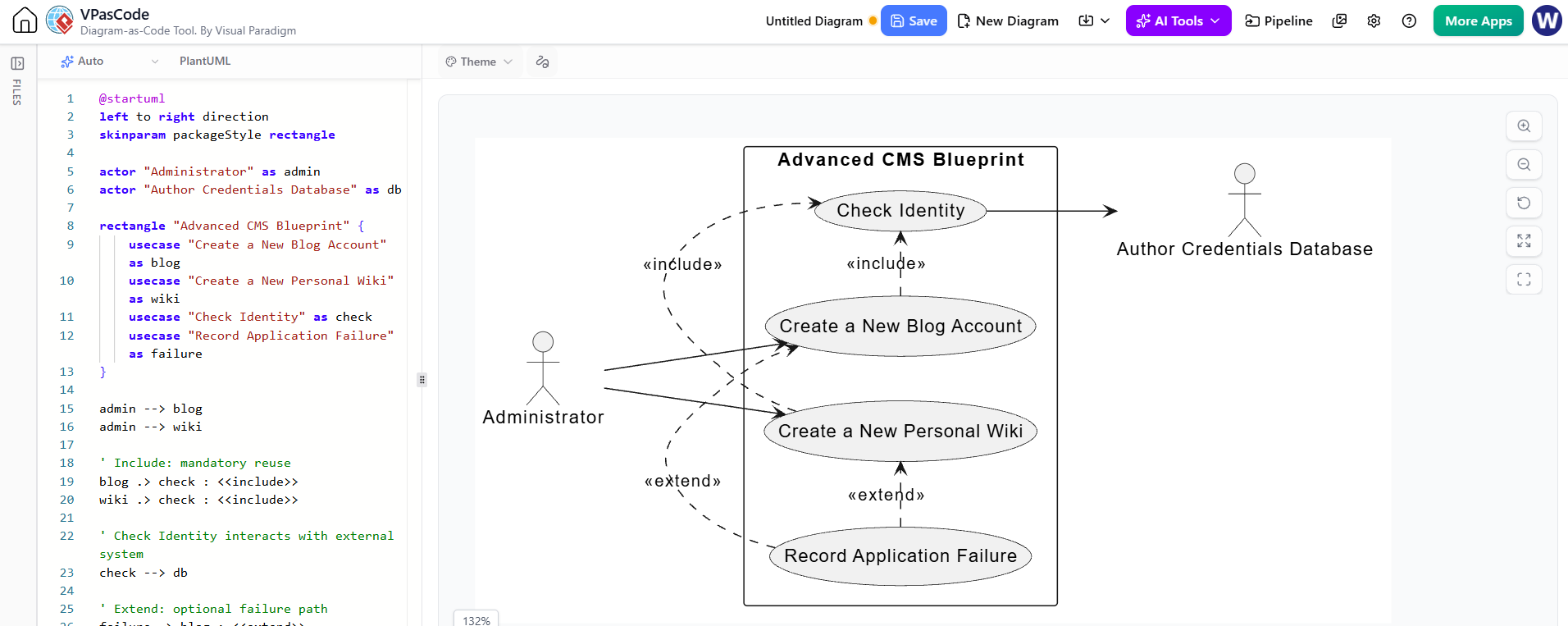
An <<include>> relationship represents a mandatory interaction. The base use case cannot complete without the included behavior. For instance, a “Check Identity” use case is often included by “Create a New Blog Account” because the system must verify credentials before creating a user.
Use «Extend» for Optional Behavior
An <<extend>> relationship represents optional or conditional behavior. The extended use case only executes under specific conditions. In the CMS example, a “Record Application Failure” use case extends the “Create a New Blog Account” process. This only happens if the system encounters an error during account creation.
The AI can automatically analyze relationships and suggest improvements. For example, it might suggest adding an <<include>> between “Transfer Funds” and “View Balance” in a banking system, recognizing that a user logically needs to check their balance before transferring money.
5. Diagram-as-Code: PlantUML and Mermaid
For teams that prefer a version-controlled, text-based workflow, Visual Paradigm supports “Diagram-as-Code.” This allows diagrams to be edited as text files (using PlantUML or Mermaid syntax) and tracked in Git repositories alongside source code.
When using PlantUML, you can define actors and use cases using text commands. For example, to define an Administrator actor, you would write:
actor "Administrator" as admin
To define the system boundary and use cases within it:
rectangle "Advanced CMS Blueprint" { usecase "Create a New Blog Account" as blog usecase "Create a New Personal Wiki" as wiki }
Visual Paradigm’s VPasCode editor allows for bidirectional synchronization. You can modify the text in the code editor, and the visual diagram updates instantly. This is particularly valuable for maintaining the “source of truth” for your requirements in a single repository.
6. Integrating with Agile Workflows
The true power of this tooling lies in its ability to bridge the gap between formal modeling and Agile execution. Use cases created in Visual Paradigm are not static images; they are living model elements.
- Refinement: Use cases are refined into user tasks, epics, and user stories.
- Backlog Integration: These items can be pushed directly to Agile product backlogs for sprint planning.
- Traceability: This eliminates the disconnect between requirements documentation and sprint execution, ensuring that no requirement is lost in translation.
Furthermore, the tool supports scenario-driven elaboration. By defining normal and alternative flows within the use case specification, you can automatically generate Sequence Diagrams and Activity Diagrams. This provides a seamless transition from high-level requirements to detailed design.
7. Best Practices for Success
To get the most out of AI-assisted modeling, consider the following best practices:
- Be Specific with Actors: Explicitly mention external systems (e.g., “payment gateway,” “email service”) as secondary actors in your prompt.
- Define Boundaries: Always include the system boundary explicitly in your prompt (e.g., “for a [System Name] that…”).
- Iterate One Change at a Time: Compound instructions can sometimes confuse the AI. It is better to refine the diagram in small, incremental steps.
- Review Logic: While the AI produces syntactically correct diagrams, semantic accuracy depends on the prompt. Always review generated relationships to ensure they reflect the intended business logic.
By combining the rigor of UML with the accessibility of AI conversation, Visual Paradigm empowers teams to create high-quality requirement models without the traditional overhead. Whether you are a Business Analyst producing formal specifications or an Agile team bridging the gap to sprint planning, these tools offer a flexible and powerful approach to system architecture.