


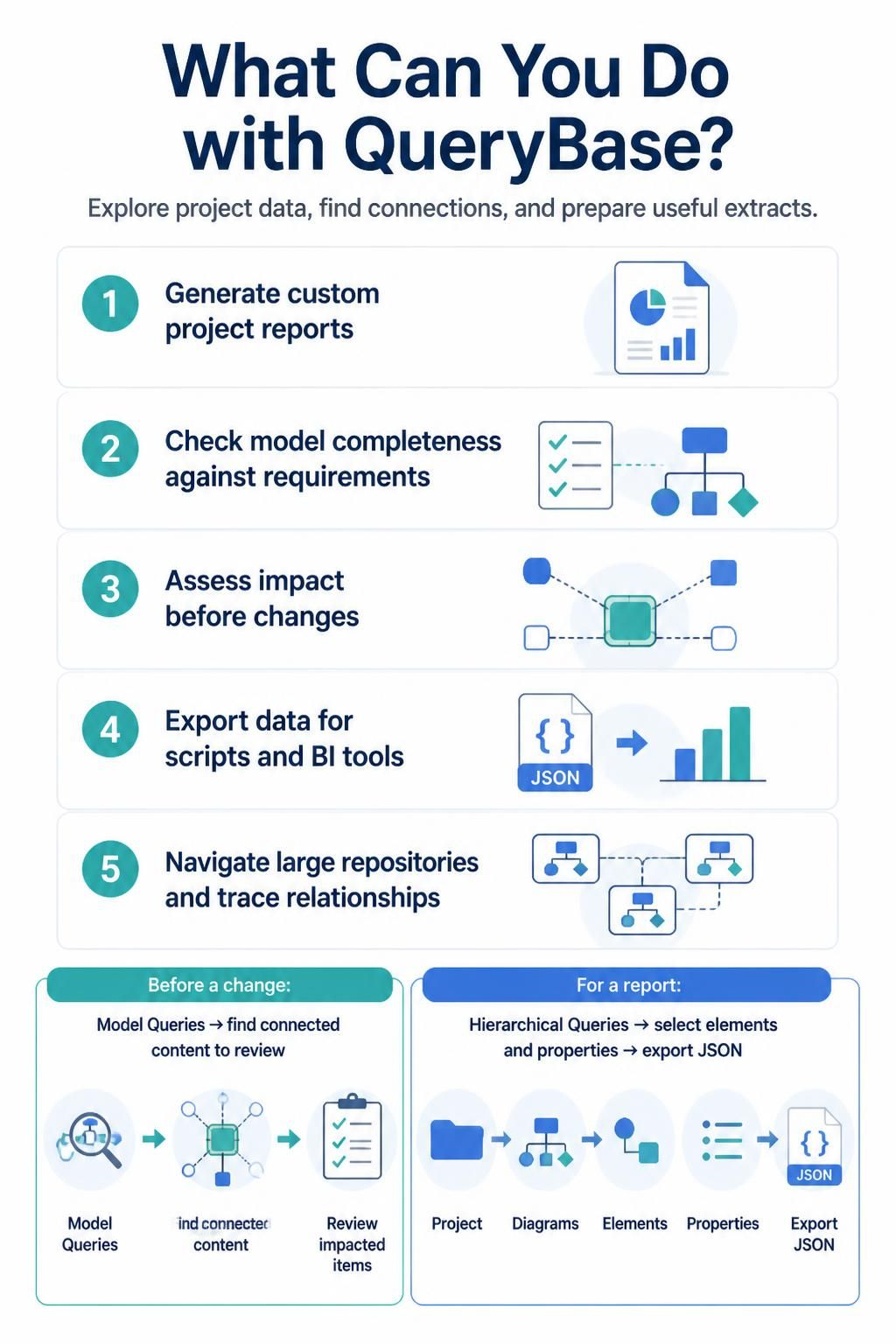
In the realm of enterprise modeling and system architecture, managing the complexity of large Visual Paradigm projects requires more than just visual diagramming. It demands robust data extraction and analysis capabilities. This tutorial explores the architecture of Visual Paradigm QueryBase, a specialized tool designed to interact directly with the data within your .vpp project files. By understanding how to leverage Model Queries and Hierarchical Queries, you can automate reporting, validate model integrity, and perform deep impact analysis.
QueryBase functions as an independent, powerful engine that allows users to ask specific questions about their project’s structure, properties, and relationships. It bridges the gap between the visual modeling interface and programmatic data analysis, enabling the export of data into JSON formats for integration with Business Intelligence (BI) tools or custom scripts.
The Two Pillars of QueryBase
To effectively utilize this tool, one must understand the two primary query mechanisms it employs. These tools serve different purposes depending on whether you are exploring the graph of relationships or extracting specific data attributes.
1. Model Queries (Relationship Tracing)
Model Queries are the primary tool for navigating the “graph” of your project. They are designed to traverse connections between elements. This is essential for maintaining data integrity and understanding dependencies.
- Use Case: Impact Analysis. Before refactoring a specific class or requirement, you need to know what depends on it.
- Mechanism: You define a starting element and a relationship path (e.g., “Find all elements that are contained within this package”).
- Output: A list of connected elements that require review.
2. Hierarchical Queries (Data Extraction)
While Model Queries focus on connectivity, Hierarchical Queries focus on structure and properties. This is the engine behind the “Export to JSON” functionality.
- Use Case: Generating Custom Project Reports. You need a summary of all requirements and their status.
- Mechanism: You select a scope (Project, Diagram, or specific Element) and define a hierarchy of properties to retrieve.
- Output: Structured data (typically JSON) that can be consumed by external systems.
Step-by-Step: Performing Impact Analysis
One of the most critical tasks in systems engineering is assessing the impact of a change. If you modify a core component, you risk breaking downstream dependencies. Here is how to use Model Queries to prevent that.
- Identify the Target: Locate the specific element you intend to change within your diagram or the Project Explorer.
- Construct the Relationship Path: Open the Model Query tool. Instead of searching for a name, search for a connection. For example, if you want to find all diagrams that reference a specific use case, you would build a query that follows the “referencing” relationship path.
- Execute and Review: Run the query. The system will return all connected content. Review this list to ensure you have not overlooked any dependencies.
- Validate Scope: Ensure your query is not too broad. If you are looking for connections within a specific package, define that scope to avoid noise from the entire repository.
Step-by-Step: Generating Custom Reports
Visual Paradigm projects often contain vast amounts of metadata that is not immediately visible on the canvas. Hierarchical Queries allow you to extract this data for reporting.
- Select Your Scope: Start by identifying the container for your report. This could be an entire project, a specific diagram, or a collection of elements.
- Choose Properties: Do not export everything. Limit your output to the relevant properties (e.g., “Name,” “Status,” “Author,” “Description”). This keeps the resulting JSON file lightweight and easier to review.
- Define the Hierarchy: Arrange your properties in the order they should appear in the output. This often mirrors the tree structure of your project folders.
- Export to JSON: Execute the query to generate a JSON file. This file can now be fed into a BI tool for visualization or a script for automated processing.
Best Practices for Querying
To get the most useful results from QueryBase, you must adopt a disciplined approach to query construction.
- Start Narrow: It is better to start with a specific, narrow question (e.g., “Find all requirements in the ‘Backend’ package”) than a broad one. You can always broaden your search later.
- Validate Before Reliance: Never trust a query blindly. Always review a sample of the returned elements against the actual project to ensure your filters match your intended scope.
- Check Relationships, Not Just Names: When tracing connections, ensure the query follows the intended relationship path. A name match might find an element, but a relationship match finds the context.
Conclusion
By mastering the distinction between Model Queries (for tracing connections) and Hierarchical Queries (for extracting data), you transform Visual Paradigm from a simple drawing tool into a powerful data repository. Whether you are ensuring model completeness against requirements or preparing data for business intelligence, QueryBase provides the architecture needed to navigate and analyze complex project ecosystems.